This Article Covers:
This article covers how to access MyEducator and complete assignments in the system.
Prerequisites
- Enrolled in a class that uses MyEducator
- Windows or Mac computer
- A Windows PC is required for Microsoft Access assignments
- Microsoft Office is installed
- Your computer's system language must be English. If your computer is set to a non-English language please refer to the "System Language Must be English" section of the MyEducator troubleshooting article.
Set up Your MyEducator Account
Please refer to your syllabus for instructions to purchase MyEducator.
Working with Macro-Enabled Assignments
- Navigate to the assignment in Canvas.
- Download the Excel or Access document with the provided link.
- DO NOT OPEN THE FILE YET!!!
- If you accidentally open the file before unblocking it you will need to redownload it from Canvas.
- Move the file out of your Downloads folder into a separate folder to prevent it from being blocked.
- On JCU computers you should create a folder called BI1100 or BI2200 in your Documents folder, e.i. C:\Users\yourusername\Documents\BI1100
- MyEducator does not always work if you use OneDrive, iCloud or Google Drive to back -up your files. Instead, use an alternate location, such as C:\Users\yourusername\MyEducator (Windows) or /Home/yourusername/MyEducator (MacOS)
- Windows-Only: Make sure the MyEducator folder you've created is added as a trusted location in MS Office.
- Unblock and open the file.
- Windows:
- Highlight the Excel/Access workbook file .
- Right-click it and select Properties.
- Click the Unblock box in the bottom right, then click OK.
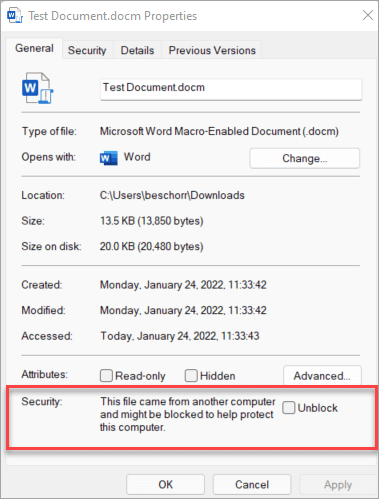
- Double-click the file to open your assignment file
- You will get a pop-up message saying something about visiting the Trust Center.
- Click OK on that message then click Allow on the yellow security banner at the top of the screen.
- MacOS:
- Open the Excel/Access workbook after moving it to your MyEducator folder.
- A popup will appear asking if you want to allow macros. Click Enable Macros.

- Once your workbook is open your should see an Assignment tab in the ribbon.
- Use the Instruction Sheet and Task Guide buttons to see your instructions for the assignment.
- Click the Submit button when you are ready to turn in your assignment.
- If you receive any errors when using these buttons refer to the articles in the Resources section below.
Working with MyEducator Add-in Assignments
- First install the MyEducator Add-in for Excel or Access
- On JCU lab computers or JCU Digital Portal the add-in will already be installed.
- On a personal computer with Office 365 you will not have permissions to use the Addin store. Follow MyEducator's articles for installing the add-in for Windows or installing it on a Mac instead.
- Navigate to your assignment on your Canvas course.
- Follow the instructions until it gives you a code for the assignment.
- Copy the code, then switch back to Excel.
- At the top of your Home Ribbon, there will be an orange square that says MyEducator
- Select MyEducator Tasks

- This will open the MyEducator Menu.

- Enter the code from your Canvas Assignment.
- Press Start.
Resources
- Please refer to the MyEducator Troubleshooting article if you are having difficulties getting MyEducator assignments to work.
- MyEducator Support and additional troubleshooting articles can be found at the MyEducator Support site.
- MyEducator Add-in Downloads
- JCUDigitalPortal can be used if you need a Windows computer for the assignments. The virtual classroom computers also have the MyEducator add-in pre-installed.